
Your profile and Login & Devices
Change your name, password, and two-factor phone, sign out a device, and edit your own profile.
What you'll learn
- How to keep your name, password, sign-in phone, and profile details up to date, and sign out devices you don't use.
Where your settings are
Your sign-in details and your profile are on separate pages. Everyone in an agency or organization workspace has both.
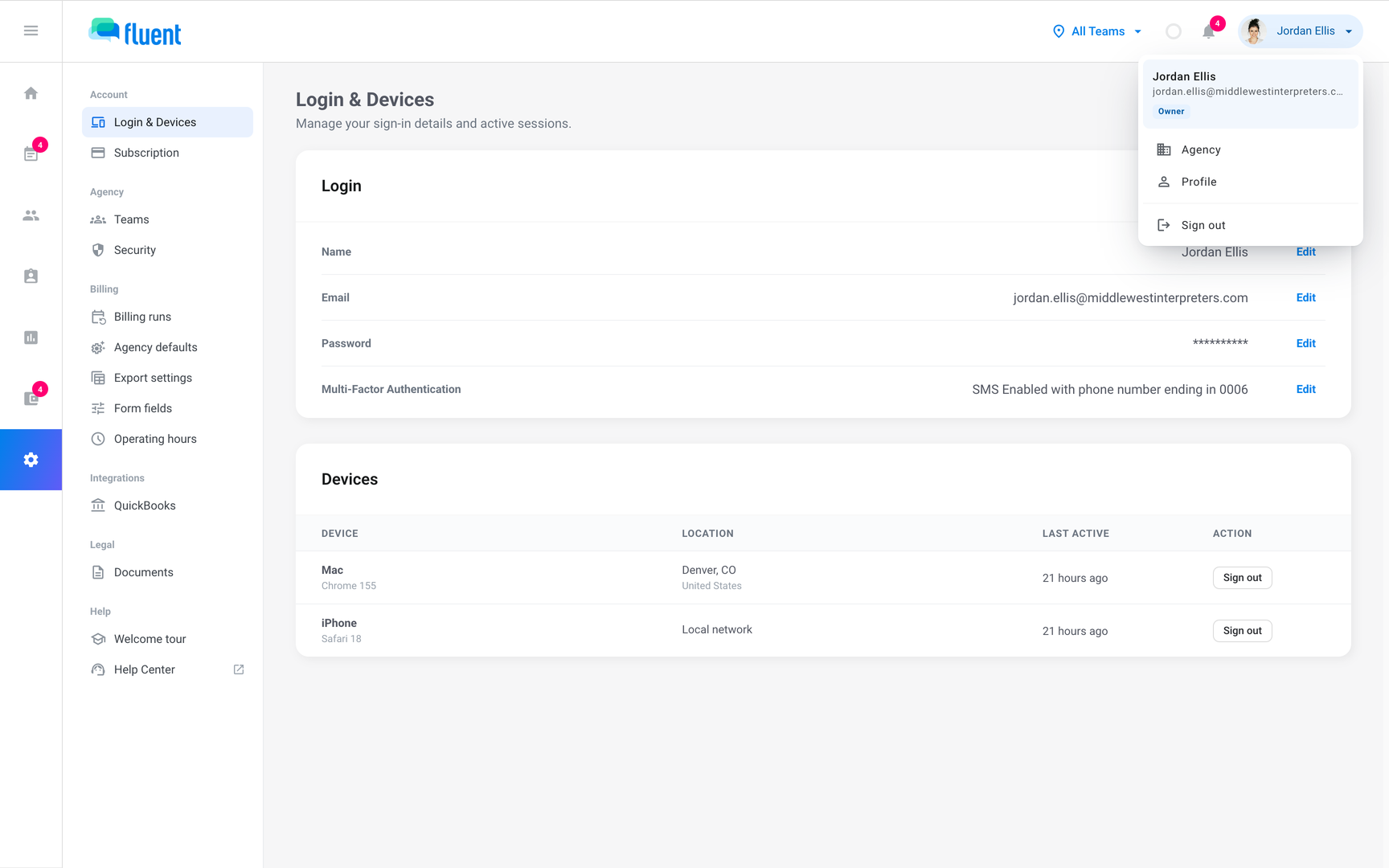
- Login & Devices: click Settings in the sidebar, and it opens.
- Your profile: click Profile in the profile menu at the top right.
Change your name
Update your name here when it changes.
- Go to Settings › Login & Devices.
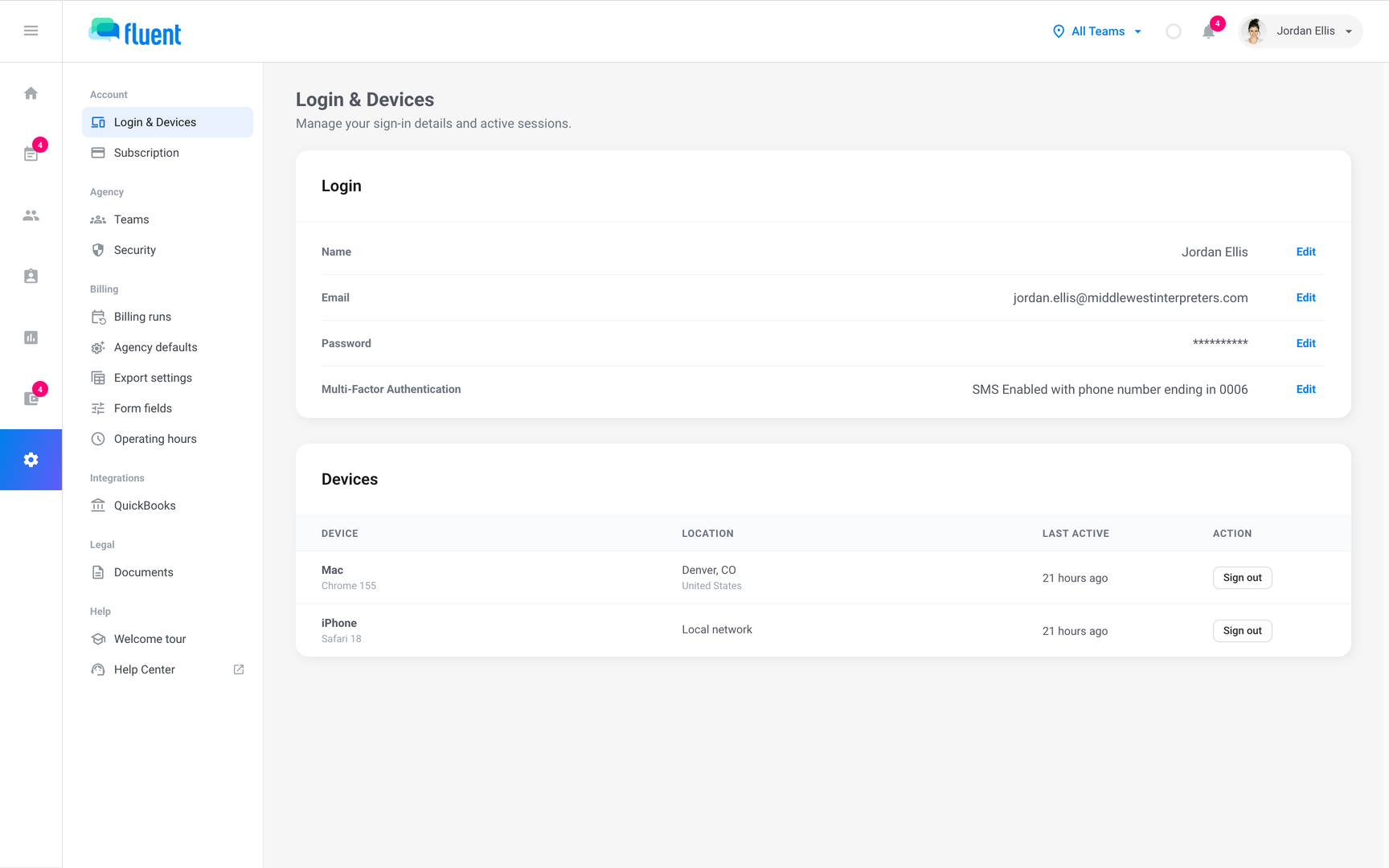
- In the Login card, next to Name, click Edit.
- Edit First Name and Last Name, then click Save.
You see "Name updated".
Change your password
Before Fluent sets a new password, it asks for your current one and a code it texts you.
- Go to Settings › Login & Devices.
- In the Login card, next to Password, click Edit.
- Click Continue.
- Enter Current Password and click Next.
- Enter the 6-digit code Fluent texts you, then click Next.
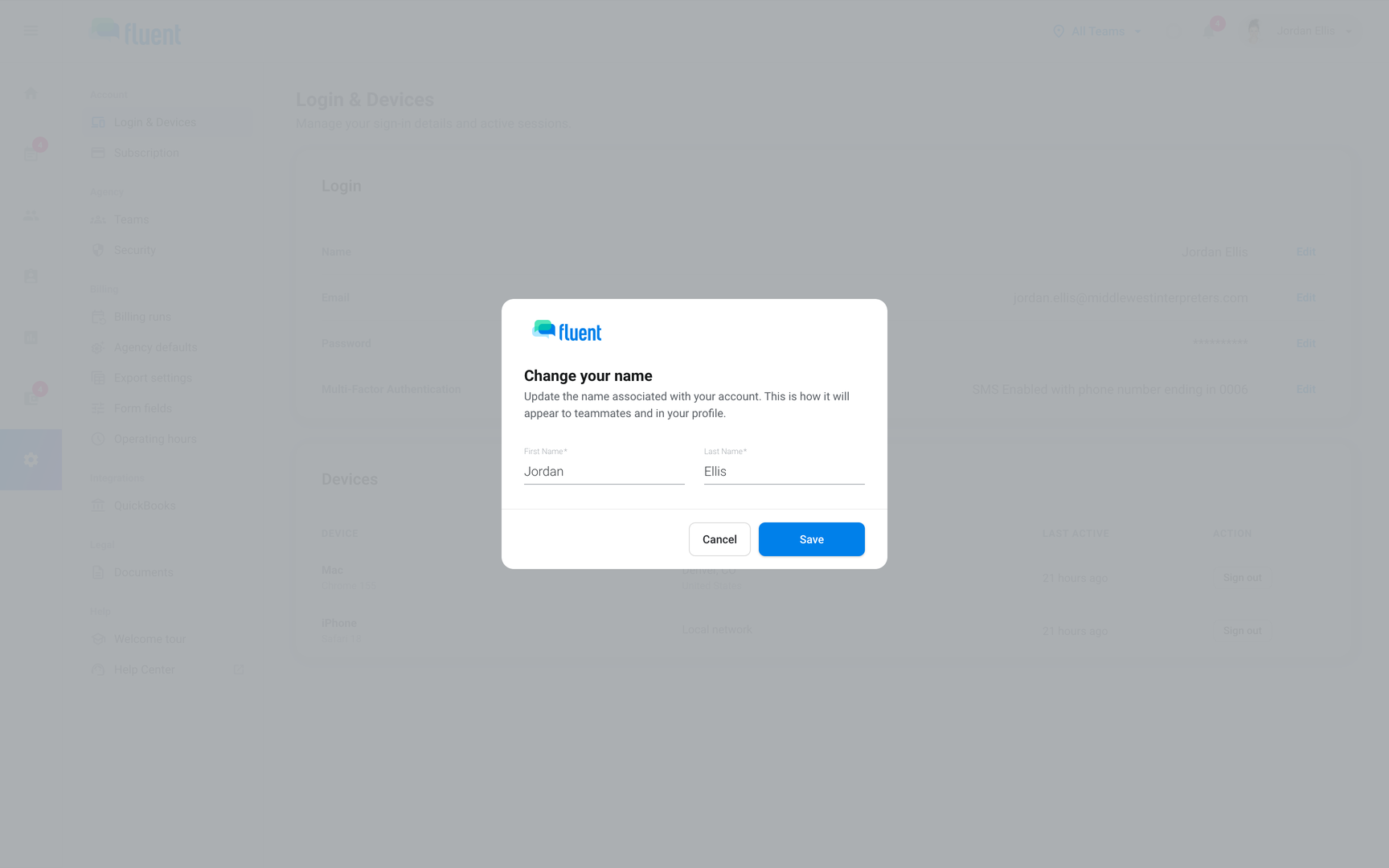
- Enter New Password and Confirm New Password, then click Change password.
- Click Done.
You see "Password changed successfully".
Fluent signs out every other device, Face ID included, and emails you "Your Fluent password was changed". The password rules are in Sign in and passwords.
Change your two-factor phone
Fluent texts your sign-in codes to your two-factor phone. Change it here when you get a new number.
- Go to Settings › Login & Devices.
- Next to Multi-Factor Authentication, click Edit.
The "Change 2FA phone number" dialog opens. Follow its steps in Two-factor authentication.
Sign out a device
The Devices card lists each browser and phone signed in to your account. Sign out any you don't use or don't recognize.
- Go to Settings › Login & Devices.
- In the Devices card, click Sign out next to the device.
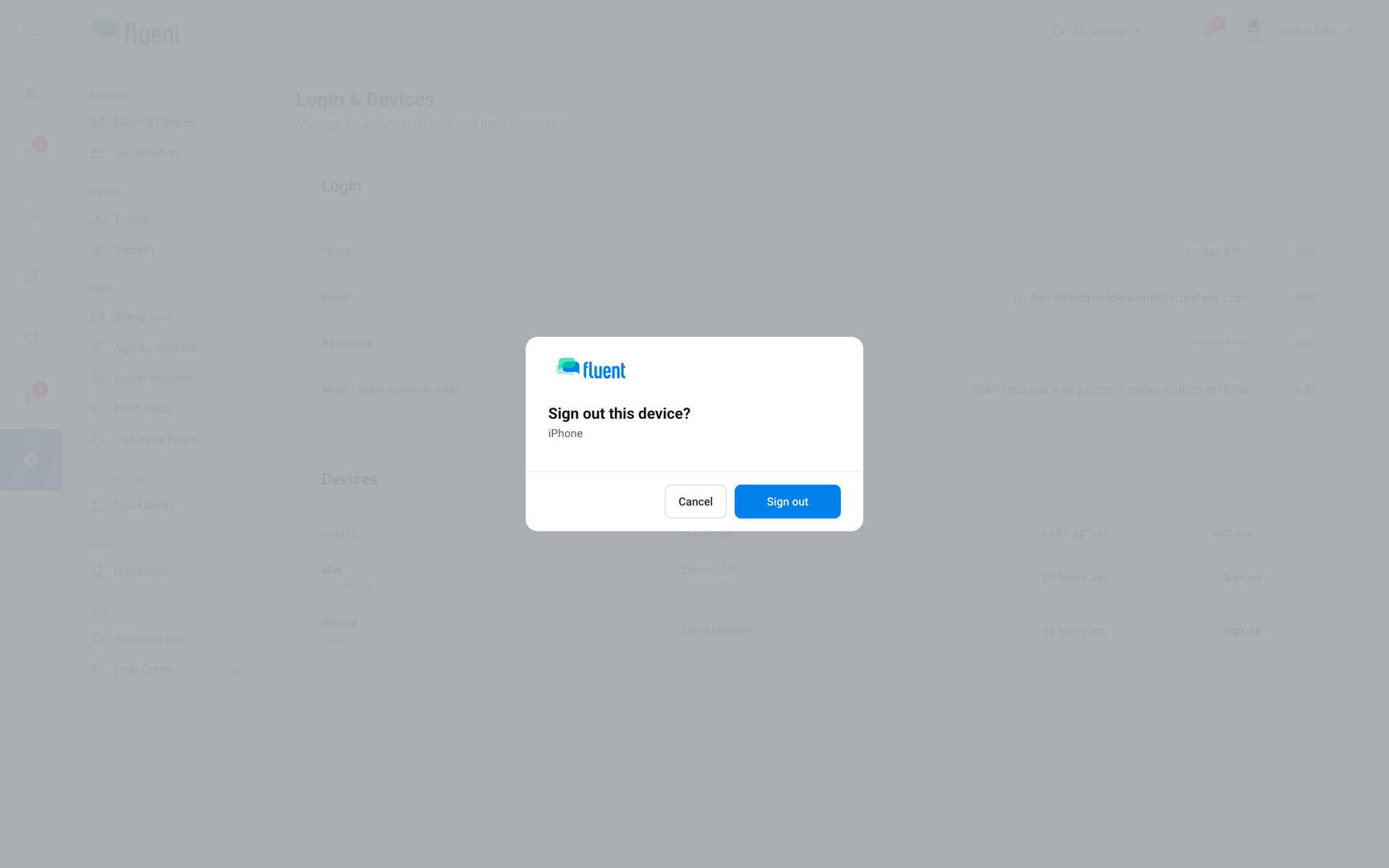
- In the "Sign out this device?" dialog, click Sign out.
You see "Device signed out."
That device has to sign in again with its password, and it stops getting push notifications. Face ID doesn't work on it until then.
A phone marked "Signed out, still gets offer notifications" signed itself out after a while without use. Click Sign out on it to stop its notifications too.
Edit your profile
Your profile holds your photo and contact details. An interpreter's profile also holds their languages and availability.
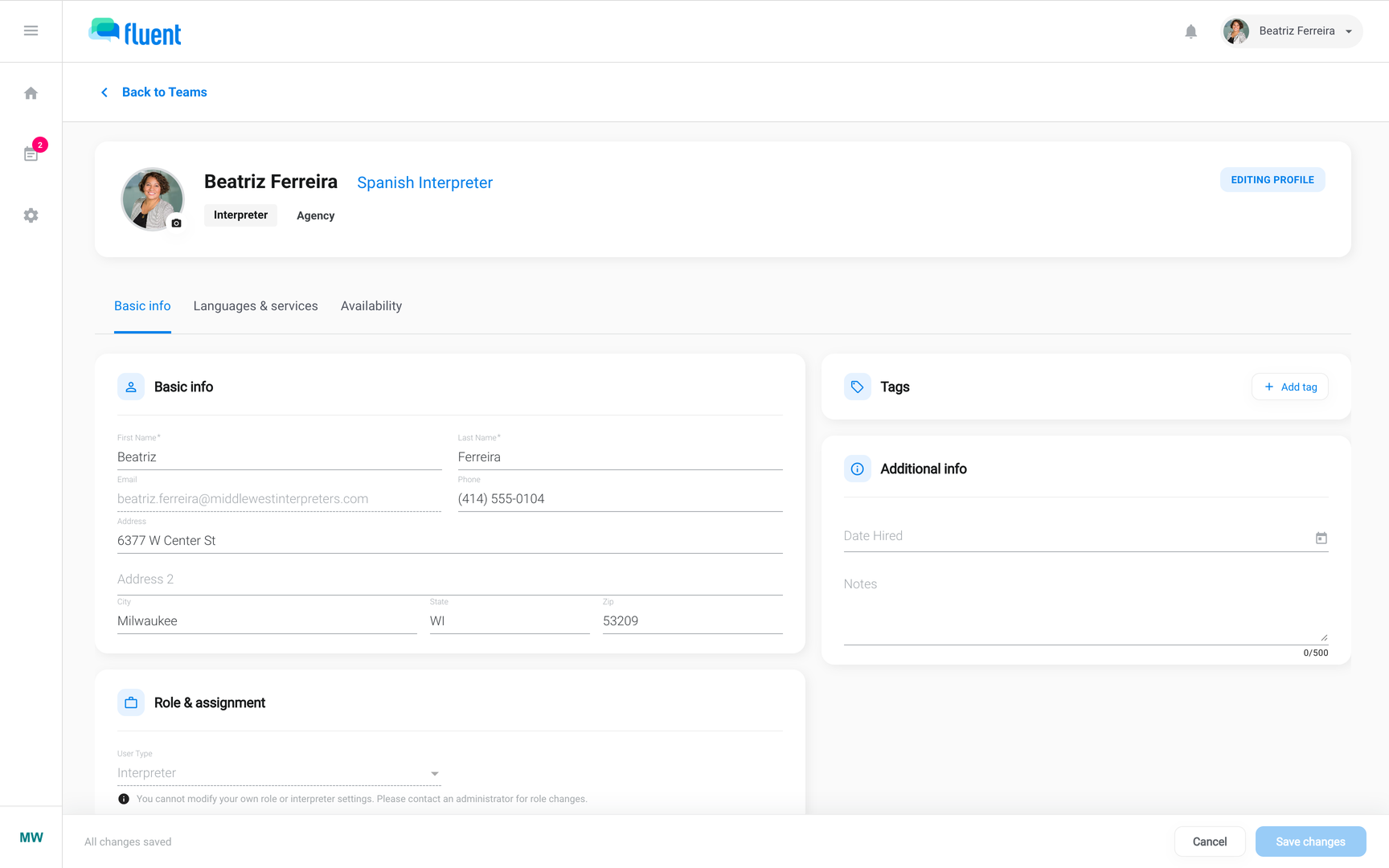
- Open the profile menu at the top right and click Profile.
- Click Edit profile.
- To change your photo, click the camera button on your photo, then Upload Photo, Change Photo, or Remove Photo.
- On Basic info, edit your name, phone number, and address.
- If you're an interpreter, update Languages & services and Availability too.
- Click Save changes in the bar at the bottom.
You see "Profile updated successfully".
Your agency can also edit your profile, including your availability.
On the mobile app
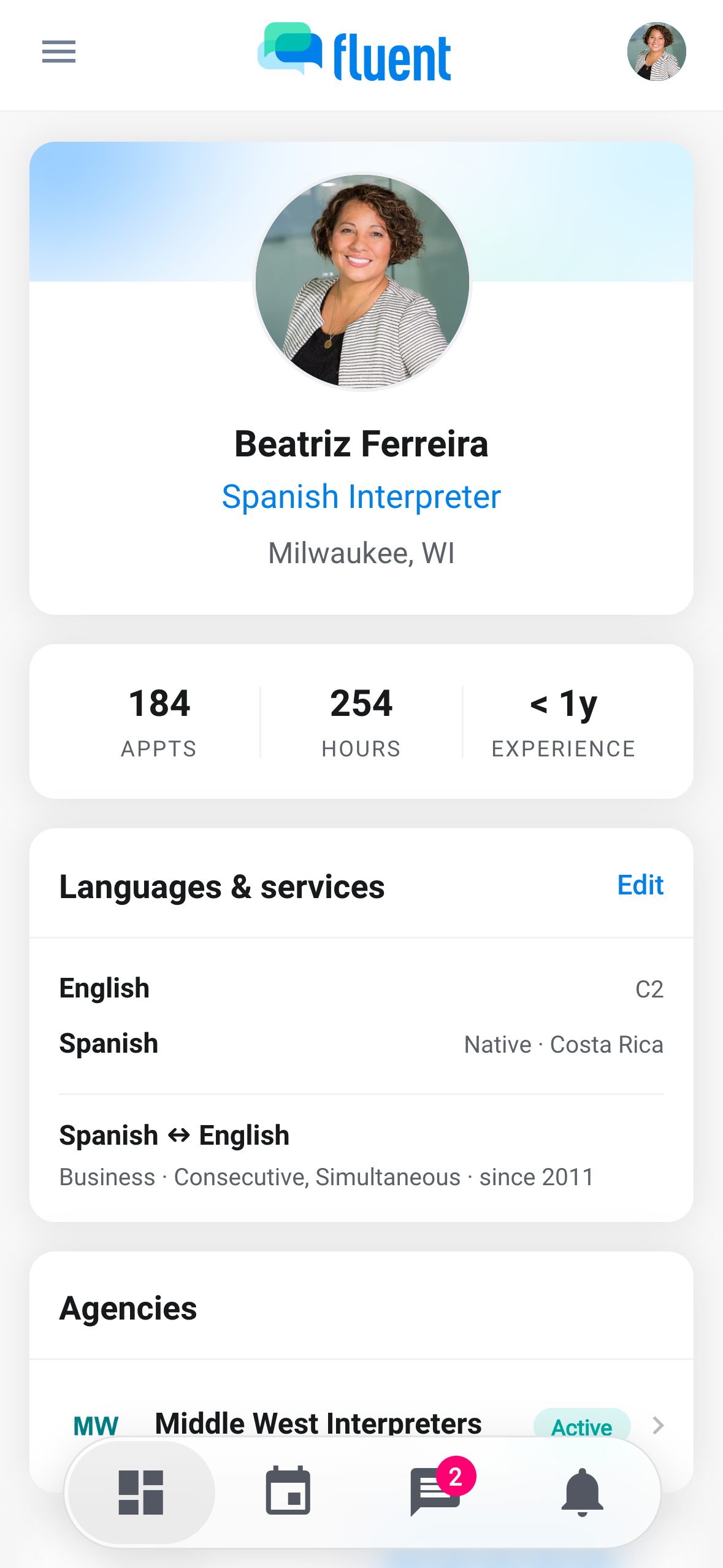
The Fluent mobile app shows your profile, but it has no screen for changing your name, email, password, or two-factor phone. Use the web app for those.
To open your profile, tap your photo at the top right, or your name at the top of the side menu.
To turn Face ID on or off, see Sign in to the mobile app.
Rules and limits
- Fluent has no personal notification settings. To stop push notifications, turn them off for Fluent in your phone's settings.
- No button signs out every device at once. Changing your password signs out every other device.
- A device you sign out can sign in again.
- A person with only an organization role can't sign in to the mobile app.
Troubleshooting
"Incorrect password. Please try again."
The password you entered isn't your current one. If you don't remember it, reset it as described in Sign in and passwords.
"No phone on file for 2FA."
Your account has no verified two-factor phone, so Fluent can't text you a code. Set one up as described in Two-factor authentication.
I see a device I don't recognize
Someone signed in to your account from that device, or you did from a browser you forgot.
- Sign the device out.
- Change your password.
- If you think someone else signed in, also follow Troubleshoot sign-in.