
Customer sites
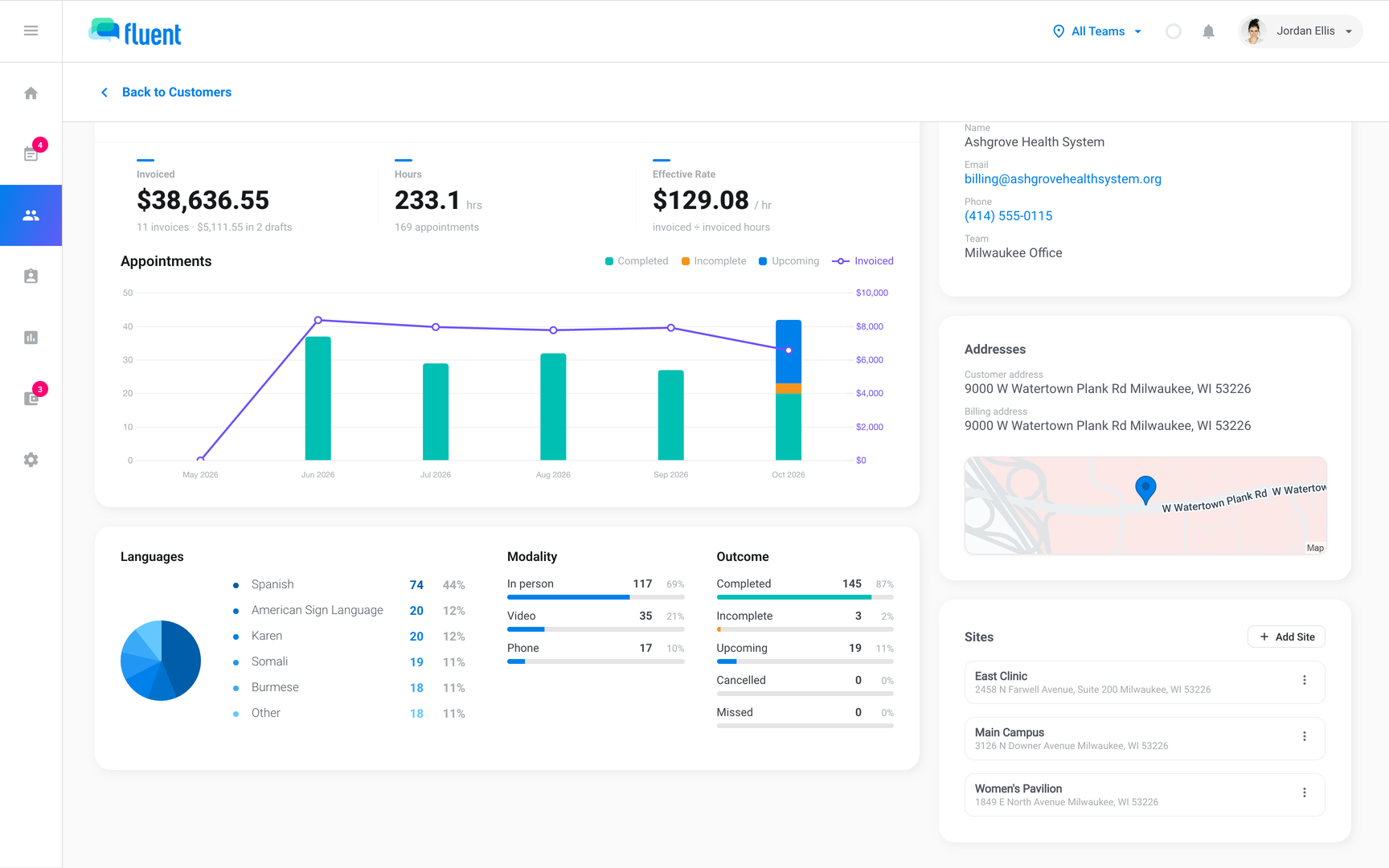
Save a customer's addresses as sites, pick one when you book an In-person appointment, and edit or deactivate sites on the customer page.
What you'll learn
- How to save the addresses where a customer books interpreters often, so you don't retype them on every appointment.
Before you start
- The customer is in Customers. To add one, see Managing customers.
Add a site
Owners, Admins, Managers, and Schedulers at your agency can add, edit, and deactivate sites. Add a site for each address where a customer books interpreters often, such as each building of a hospital.
- Go to Customers and click the customer.
- On the Overview tab, find the Sites card and click Add Site.
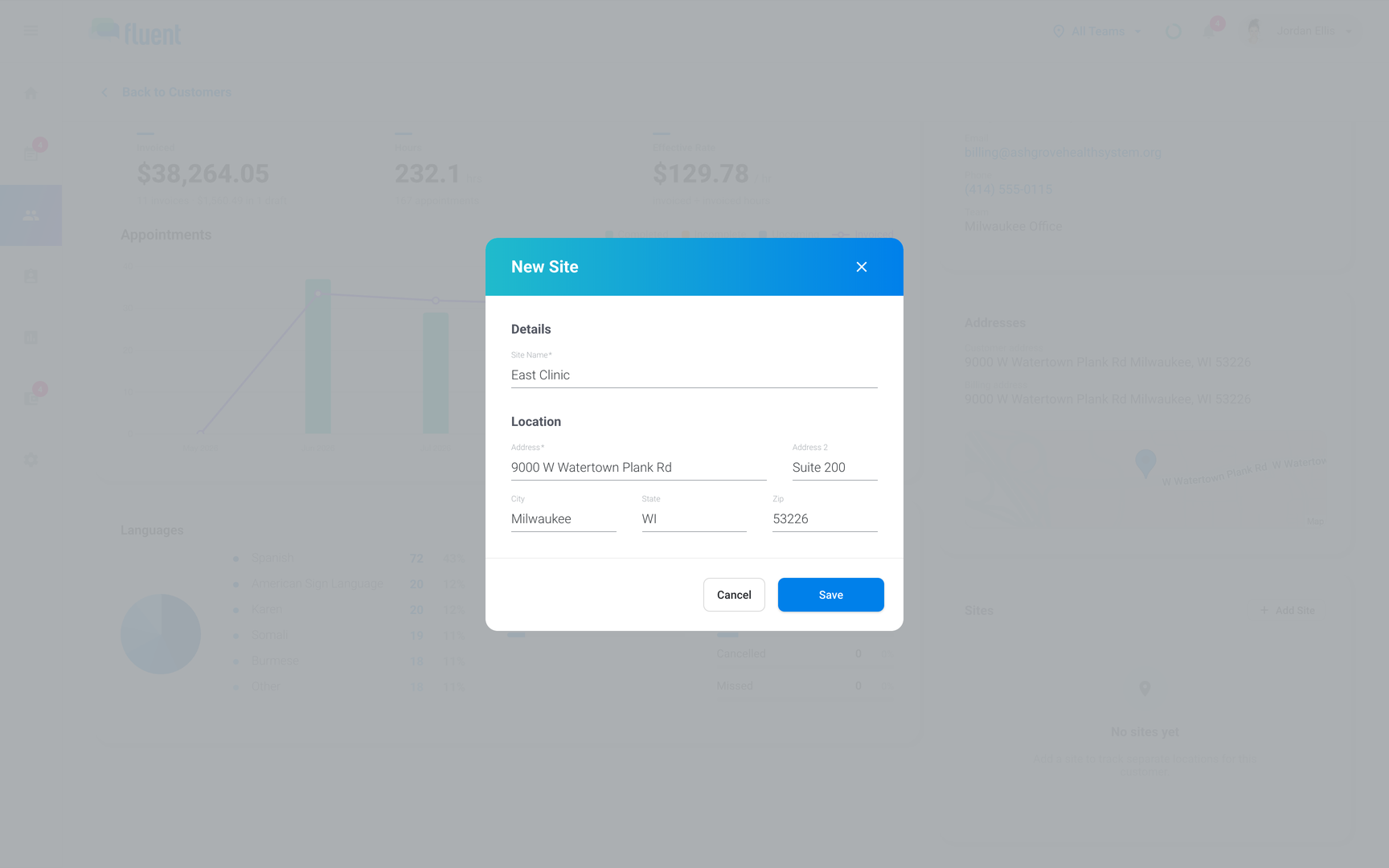
- In Site Name, enter the name your staff use for the place.
- In Address, start typing and select the address from the suggestions. Fluent fills in City, State, and Zip.
- If the place has a suite or floor, enter it in Address 2.
- Click Save.
You see "Site created".
Add a site while booking
When a customer books at a new address, you can save it as a site without leaving the appointment.
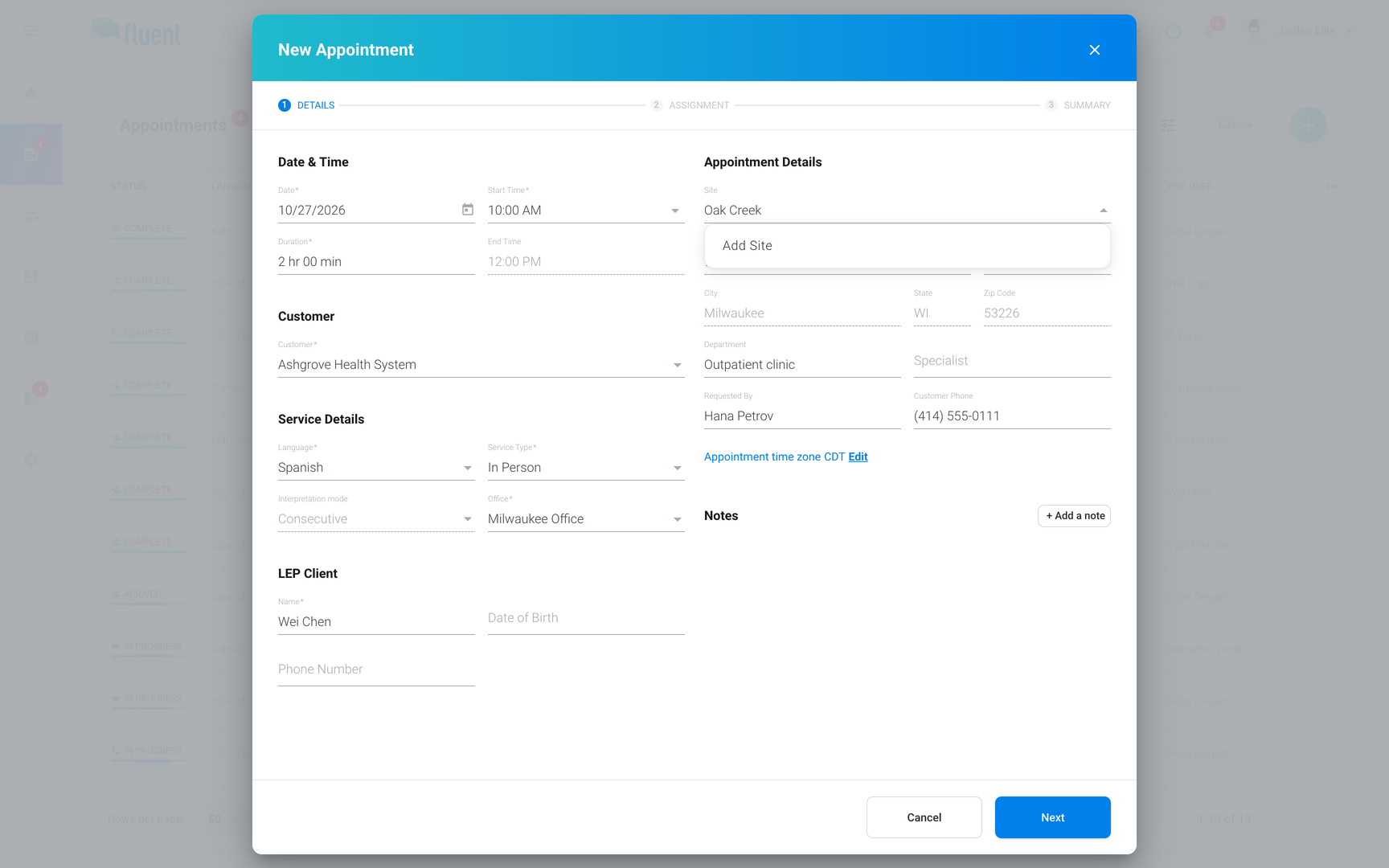
- In the New Appointment dialog for an In-person appointment, select the customer in Customer.
- In Site, type the name of the new place.
- When no site matches, select Add Site. The New Site dialog opens with the name you typed.
- Enter the address as in Add a site, then click Save.
Fluent saves the site to the customer and picks it on the appointment.
Use a site on an appointment
Pick the site after the customer, and Fluent fills in the address.
- In the New Appointment dialog for an In-person appointment, select the customer in Customer. Fluent fills in the customer's own address.
- In Site, select the site. Fluent replaces the address with the site's address.
Fluent also sets the Appointment time zone from the site's address. See How time zones work in Fluent.
Edit or deactivate a site
- Edit: when the site's name or address changes.
- Deactivate: when the customer stops using the place, so no one books there by mistake.
To edit a site:
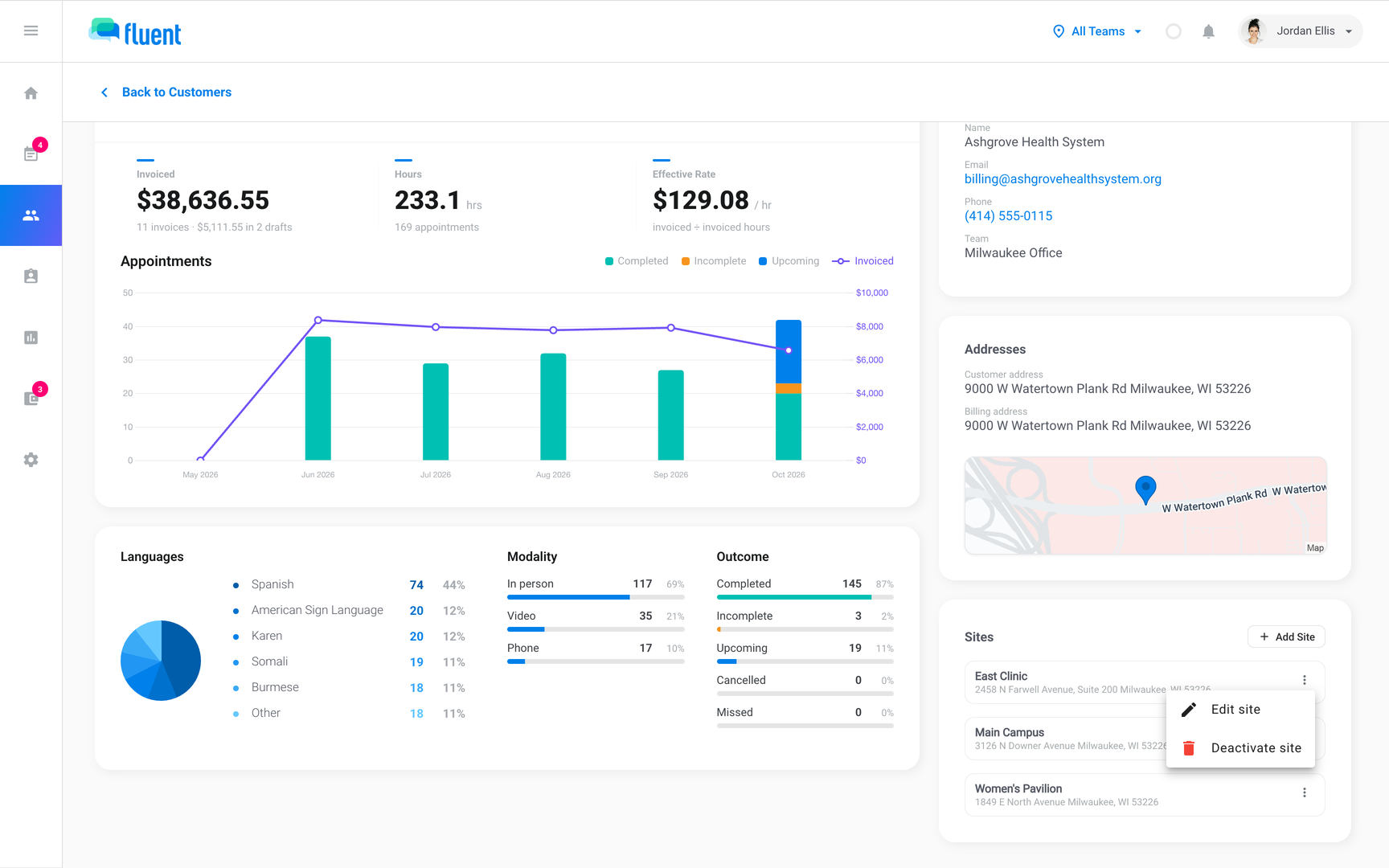
- In the Sites card on the customer page, open the ⋮ menu at the end of the site's row and click Edit site.
- Change the name or address, then click Update.
You see "Site updated".
Appointments you book from now on use the new address.
To deactivate a site:
- Open the ⋮ menu at the end of the site's row and click Deactivate site.
- In the "Deactivate this site?" dialog, click Deactivate.
You see "Site deactivated".
The site drops out of the Sites card and out of the Site field on new appointments.
Important: You can't reactivate a site. To use the place again, add it as a new site.
Filter and report by site
Use sites to find a customer's appointments at one place, or to report on one place. Which reports and invoice settings you can use with sites depends on your role, as each linked article says.
- Appointments: Use the Site(s) filter, or show the Site column.
- Reports › Services: Use the Site filter.
- Reports › Billing: Use the Site filter. See Billing report.
- Invoices: Add the site's name to each invoice line. Turn it on in Form fields.
Important: Each Site filter lists the sites of the customers you select in the customer filter, so select the customer first.
Rules and limits
- A site belongs to 1 customer. To use the same address for 2 customers, add a site to each.
- Sites don't have rates of their own. Fluent prices every site from the customer's rate card.
- A site's Site Name and Address are required. Address 2, City, State, and Zip are optional.
- Picking a site copies its address onto the appointment. Editing the site later doesn't change appointments already booked.
- Selecting a different customer on an appointment clears the site and fills in the new customer's address.
- Editing the appointment's address after you pick a site clears the site from the appointment.
Troubleshooting
I can't type in the Site field
No customer is selected yet. Select the customer in Customer first, and the Site field turns on with that customer's sites.
The appointment has no Site field
The service type is Video or Phone. Sites are for In-person appointments only.
The site I picked disappeared from the appointment
You changed the address, or the customer, after you picked the site. Select the site again in Site and leave the address as Fluent fills it in.